
Photo Toolbox
How to use USM Sharpen tool ?
An "unsharp mask" is actually used to sharpen an image, contrary to what its name might lead you to believe. Sharpening can help you emphasize texture and detail, and is critical when post-processing most digital images. Unsharp masks are probably the most common type of sharpening, and can be performed with nearly any image editing software (such as Photoshop). An unsharp mask cannot create additional detail, but it can greatly enhance the appearance of detail by increasing small-scale acutance.
Concept.
he sharpening process works by utilizing a slightly blurred version of the original image. This is then subtracted away from the original to detect the presence of edges, creating the unsharp mask (effectively a high-pass filter). Contrast is then selectively increased along these edges using this mask — leaving behind a sharper final image.
-
Step 1: Detect Edges and Create Mask
(Original)
 - (Blured Copy)
= (Unsharp Mask)
-
Step 2: Increase Contrast at Edges
Overlay(
 + + )
+ + )
=
Note: The "mask overlay" is when image information from the layer above the unsharp mask passes through and replaces the layer below in a way which is proportional to the brightness in that region of the mask. The upper image does not contribute to the final for regions where the mask is black, while it completely replaces the layer below in regions where the unsharp mask is white.
If the resolution in the above image is not increasing, then why is the final text so much sharper? We can better see how it works if we magnify and examine the edge of one of these letters as follows:

Note how it does not transform the edges of the letter into an ideal "step," but instead exaggerates the light and dark edges of the transition. An unsharp mask improves sharpness by increasing acutance, although resolution remains the same.
Note: Unsharp masks are not new to photography. They were traditionally performed with film by utilizing a softer, slightly out of focus image (which would act as the unsharp mask). The positive of the unsharp mask was then sandwiched with the negative of the original image and made into a print. This was used more to enhance local contrast than small-scale detail.
Biological Motivation.
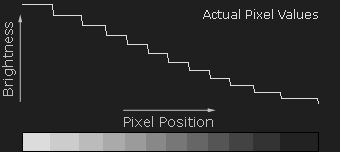
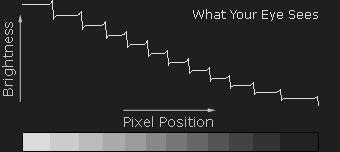
Why are these light and dark over/undershoots so effective at increasing sharpness? It turns out that an unsharp mask is actually utilizing a trick performed by our own human visual system. The human eye sees what are called "Mach bands" at the edges of sharp transitions, named after their discovery by physicist Ernst Mach in the 1860's. These enhance our ability to discern detail at an edge. Move your mouse on and off of the following image to see the mach band effect:
 ->
-> 
(Alternating with a smooth gradient enhances the mach band effect)
Note how the brightness within each step of the gradient does not appear constant. On the right side of each step you will notice it is lighter, whereas on the left it is darker — very similar to the behavior of an unsharp mask:
In Practice.
Fortunately, sharpening with an unsharp mask in Photo Toolbox is quick and easy. It can be accessed by clicking on the following drop-down menus: Effect > Sharpen > Unsharp-mask. Using the unsharp mask requires understanding its three settings: "Amount," "Radius," and "Threshold."
Amount is usually listed as a percentage, and controls the magnitude of each overshoot. This can also be thought of as how much contrast is added at the edges.
Radius controls the amount to blur the original for creating the mask, shown by "blurred copy" in the TEXT illustration above. This affects the size of the edges you wish to enhance, so a smaller radius enhances smaller-scale detail.
Threshold sets the minimum brightness change that will be sharpened. This is equivalent to clipping off the darkest non-black pixel levels in the unsharp mask. The threshold setting can be used to sharpen pronounced edges, while leaving subtle edges untouched. This is especially useful to avoid amplifying noise, or to sharpen an eye lash without also roughening skin texture.
Complications.
Unsharp masks are wonderful at sharpening images, however too much sharpening can also introduce "halo artifacts." These are visible as light/dark outlines or halos near edges. Halos artifacts become a problem when the light and dark over and undershoots become so large that they are clearly visible at the intended viewing distance.

Remedies: The appearance of halos can be greatly reduced by using a smaller radius value for the unsharp mask.
Real-World Example.
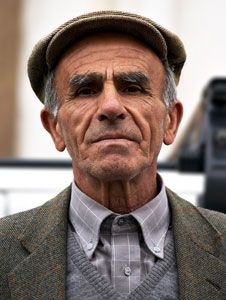 (original)
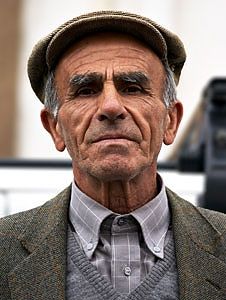 (sharpened)
Photoshop&Lightroom are trademarks of Adobe Systems Inc.