
PT Portrait 6
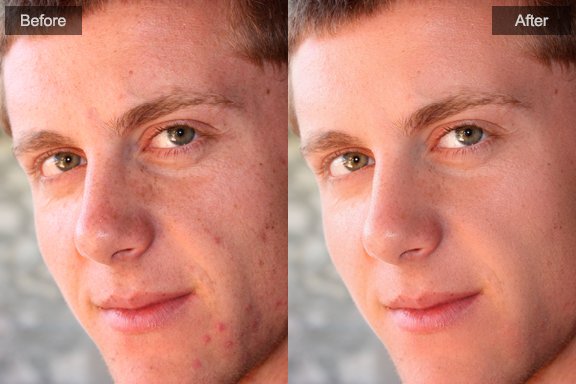
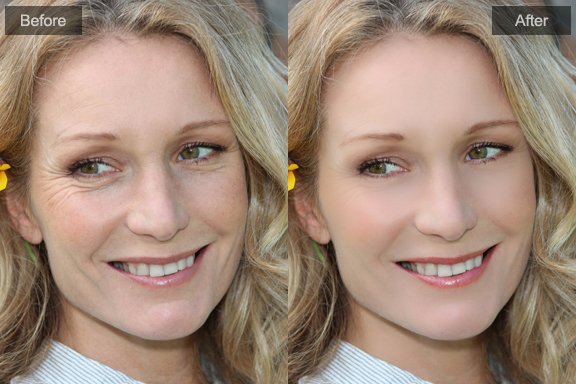
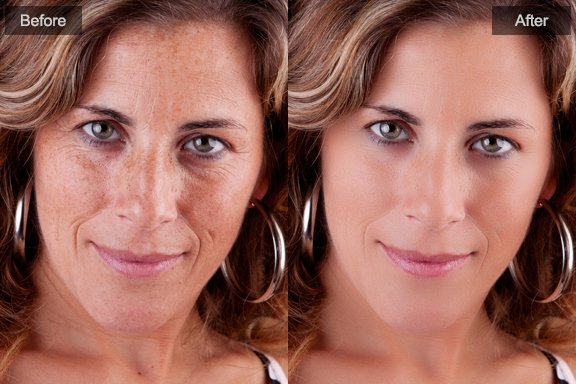
How to heal different skin problems
The Makeover module provides several easy to use adjustments to solve different kinds of skin problems. Using them properly can help you retouch portraits better.
Remove Skin Imperfections
Smooth Skin
Heal Skin around Eyes
Remove Skin Imperfections
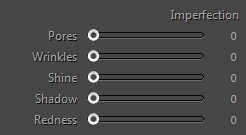
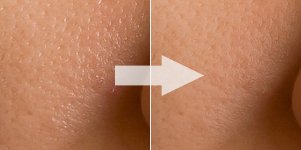
Pores: Reduce pores and light speckles within the skin area, make skin look tender.
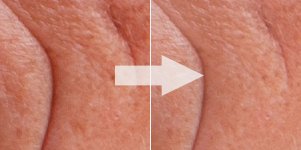
Wrinkles: Dodge wrinkles and reduce dark spots within the skin area.
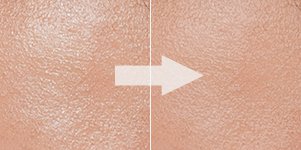
Shine: Reduce highlights from the skin area, soften oily skin.
Shadow: Even face shadow, reduce skin folds caused by wrinkles and eye bags.
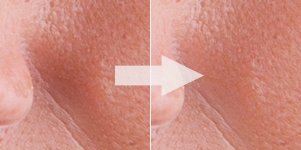
Redness: Remove redness and reduce skin blotchiness within the skin area.
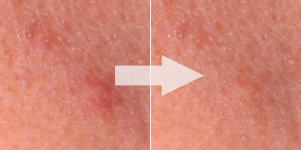
You can use Blemish Removal tool  in the tool strip to eliminate the left intractable spots.
Smooth Skin
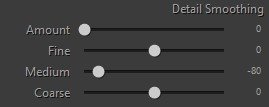
Amount: Determines how much to smooth the skin texture. Increase the Amount value to make the skin look smoother. A value of zero (0) turns off smoothing.
Fine/Coarse: Adjust the size of the details that smoothing is applied to. This is useful for skin texture control. Higher values preserve more skin texture details but may also keep some skin flaws. Lower values produce cleaner skin but may also remove some skin details.

Heal Skin around Eyes
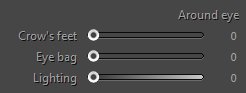
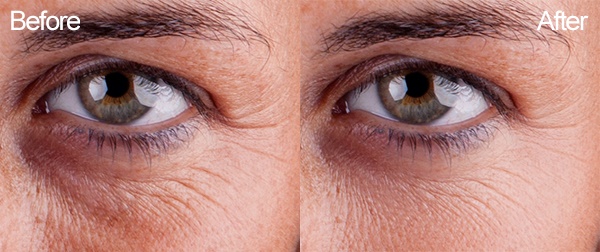
Crow’s Feet: Smooth wrinkles at the outer corner of the eyes.
Eye Bag: Smooth the skin under eyes, reduce eye bags and wrinkles.
Lighting: Lighten the dark circle under eyes.
Photoshop&Lightroom are trademarks of Adobe Systems Inc.