
Photo Toolbox
Selection Tools
Lasso
See how to use the Lasso tool.
The Lasso tool is useful for drawing freeform segments of a selection border.
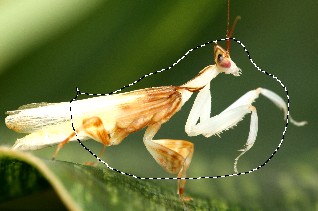
Polygonal Lasso
See how to use the Polygonal Lasso tool.
The Polygonal Lasso tool is useful for drawing straight-edged segments of a selection border.
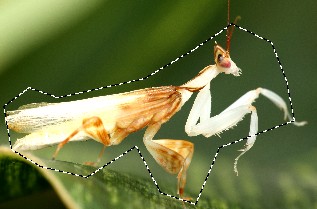
Rectangular Marquee
See how to use Marquee Selection tools.
The Rectangular Marquee tool makes a rectangular selection (or a square, when used with the Shift key).
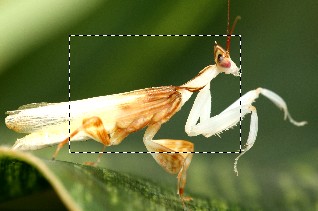
Elliptical Marquee
See how to use Marquee Selection tools.
This Elliptical Marquee tool makes a rectangular selection (or a circle, when used with the Shift key).
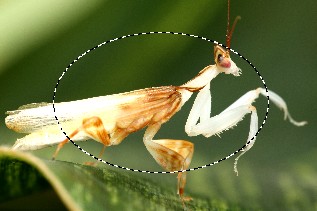
Magic Wand
The Magic Wand tool allows you to select an area of an image based on its colour. It's a very useful tool to select objects out of the background.
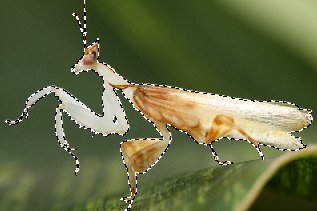
Overlap Mode
There are four modes to control the the overlapping behavior between the exist marquee and the creating one.

| Mode | Description | Effect |
|---|---|---|
| New | Create a new marquee. | |
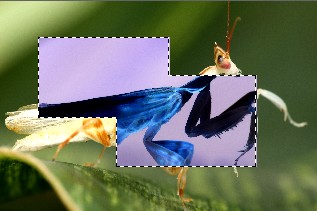
| Add To | Create a new marquee, and combine it with the previous marquee. (ex. Two combined rectangle.) |
 |
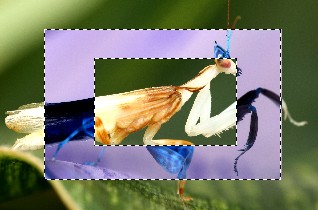
| Substract From | Create a new marquee, and substract it from the previous marquee. (ex. Substract a rectangle from the bigger one.) |
 |
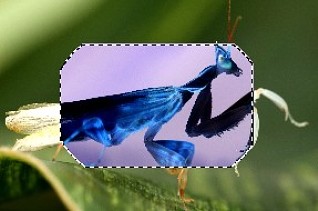
| Intersect With | Create a new marquee, and use the intersect area with the previous marquee to create a new marquee. (ex. Intersection of a rectangle and an ellipse.) |
 |
Marquee Feathering
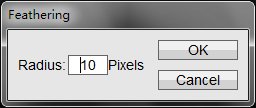
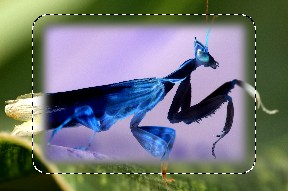
Feathering blurs edges by building a transition boundary between the selection and its surrounding pixels. This blurring can cause some loss of detail at the edge of the selection. You can define feathering for the Marquee tools and the Lasso tools as you use the tool.
You have two ways to apply the feathering effect:
1. Set feathering radius in the option bar before make selections.
Note: Feathering effects become apparent only after you modify the selection.

2. After selection was created. Select 'Edit -> Feathering' menu to set feathering radius and apply the effect to all existed selections.
Color Range Selection
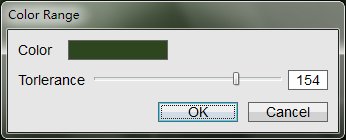
The Color Range command selects a specified color or color range within an existing selection or an entire image. If you want to replace a selection, be sure to deselect everything before applying this command.
- Choose Edit > Color Range. (Ctrl+Shift+R)
- Choose the Sampled Colors tool from the Color Picker or image.
- Adjust the torlerance of colors selected using the slider or by entering a value. The torlerace setting controls how wide a range of colors is in the selection, and increases or decreases the amount of partially selected pixels. Set a low torlerace value to restrict the color range, a higher value to increase the range.
Modify Selection
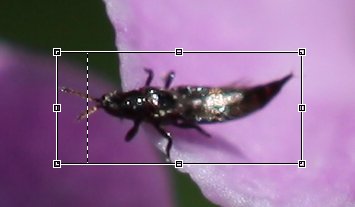
Sometimes we are not fully satisfied with a created selection and want, for example, to stretch or turn it. The Modify Selection command let us edit the selection edges without affecting the image content.
- Select some area using any selecting tools or commands.
- Choose Edit > Modify Selection. (Ctrl+Shift+M)
- Scale and move the current selection.
- When finished, click the OK button to commit the modification.

Photoshop&Lightroom are trademarks of Adobe Systems Inc.